Menu
Articles in this section
- B3 must be calculated before billing error
- What is a K84 date? What is the Daily Notice Date? What date should I use for the K84 date?
- Why is the statement printing paid invoices? Why is my AR statement printing paid invoices? Menu 3 11
- Why are brokerage charges missing from the invoice? How was an invoice calculated?
- What do the invoice status numbers mean?
- Why can't I find an invoice when trying to process or post a payment or other functions?
- Reverse Payment Entry When I cannot find the payment
- AP - Terms
- How to credit a AP Vendor Invoice
- AR Month End Close
B3 must be calculated before billing error

Arvindar
Updated
Sometimes while trying to invoice an error generates with "B3 must be calculated before Billing". The meaning of B3 must be calculated before billing means that the B3 is not recapped and will need to Recap first before trying to invoice.
This error occurs when a B3 is present, but not recapped.
In this case you have two options as outlined below
- Recap the B3 and try to bill again
- Or delete the B3
To recap the B3 (Follow the steps below to recap B3)
For the new Shipment GUI screen- Follow the steps given below-
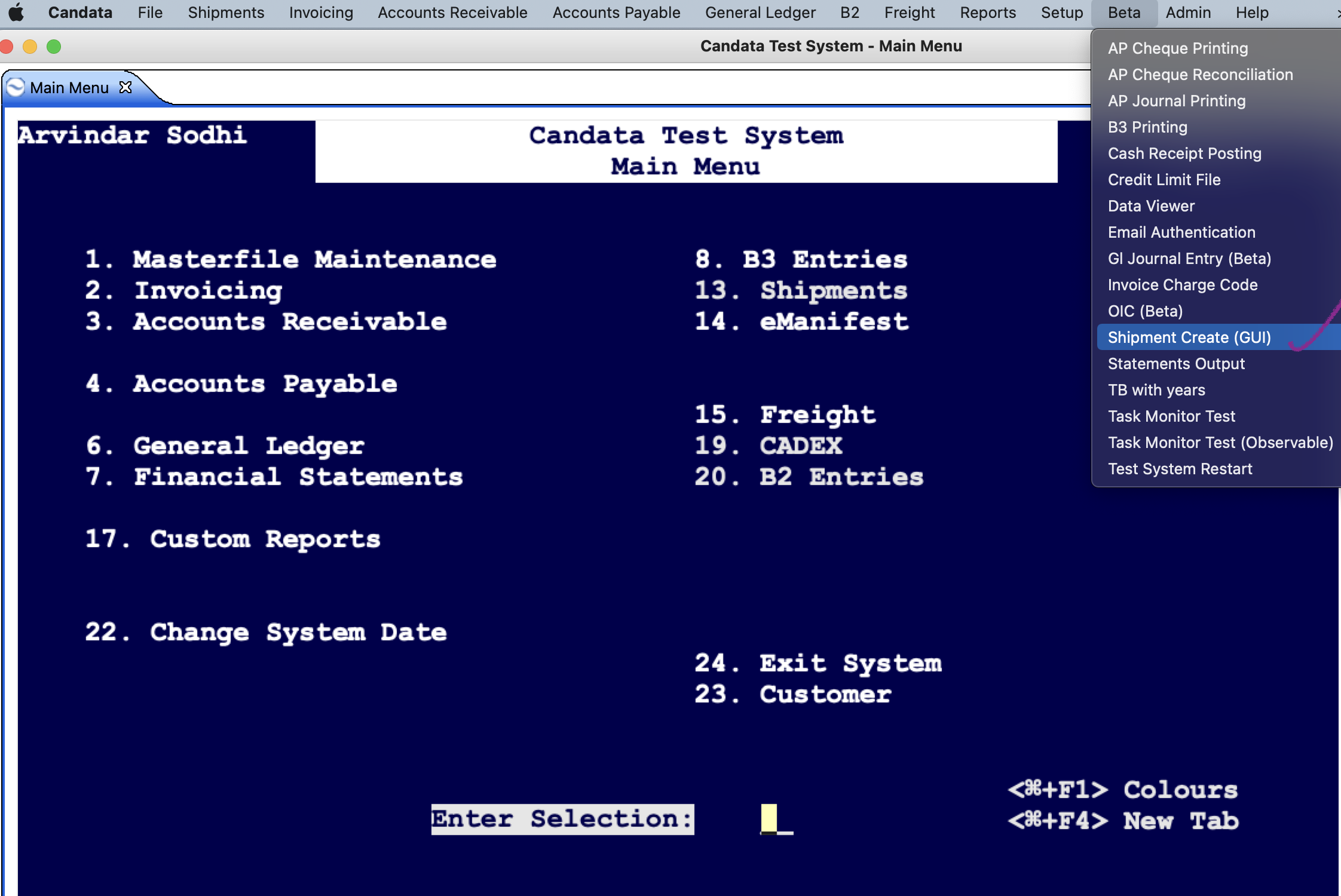
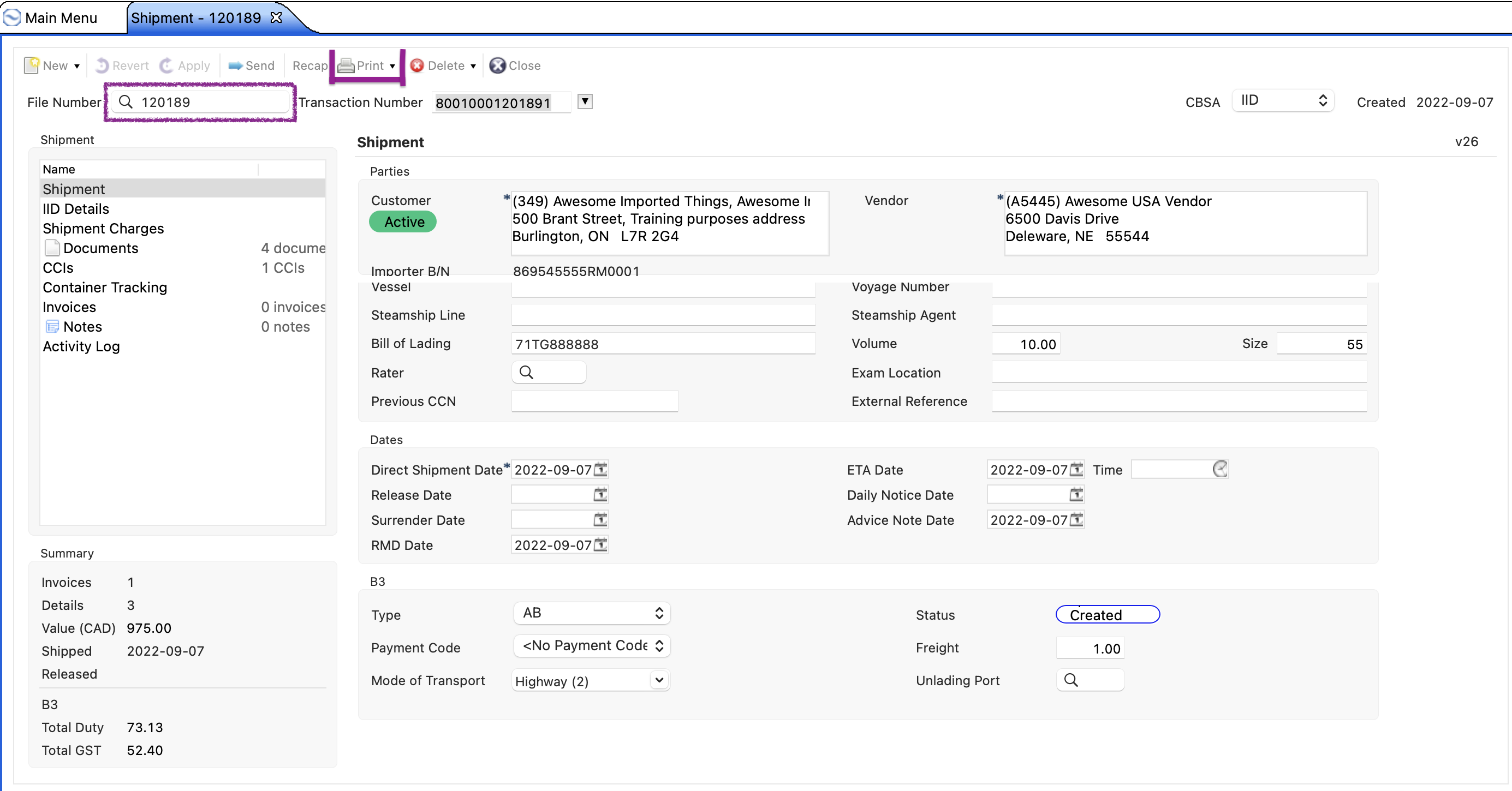
1. Go to the top Menu option as Beta>>Shipment create(GUI)
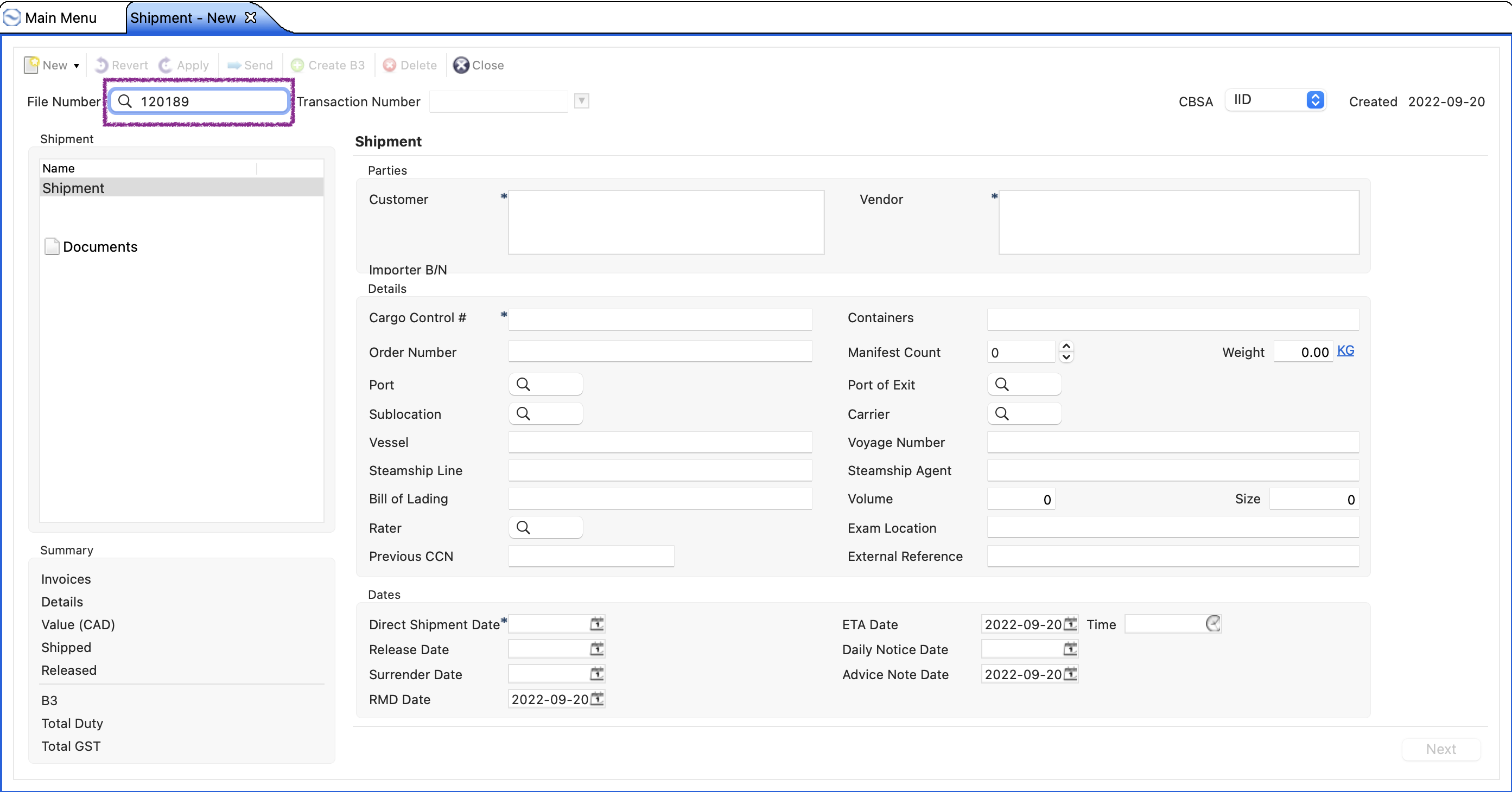
2. It will open the new shipment screen, enter the File number and search it with the magnifying glass.
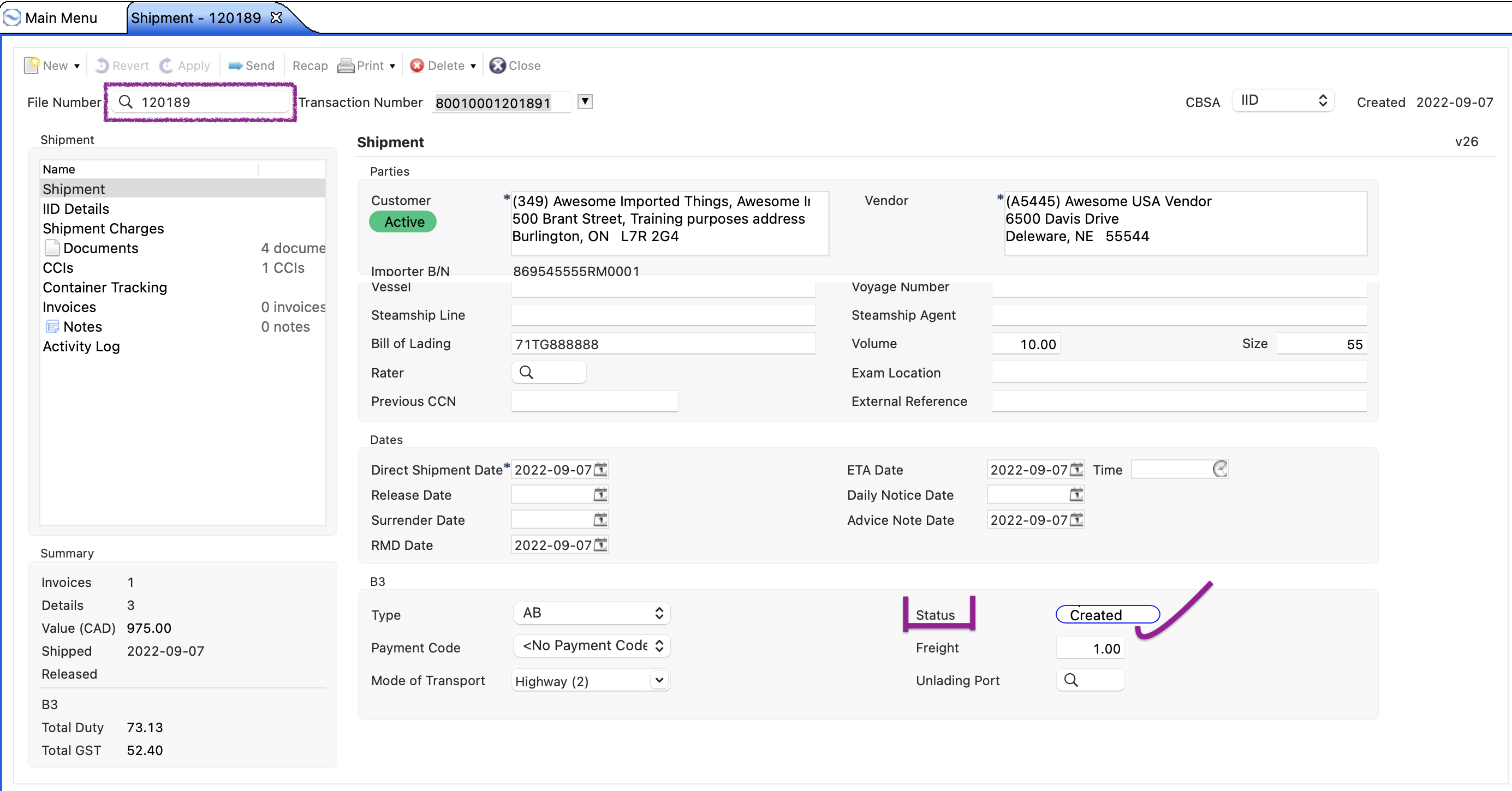
3. Once the file is loaded, we can see the status as Created.
At the top of the screen, just above the Transaction Number, there is an option as Recap. Click on Recap to Recap the B3.
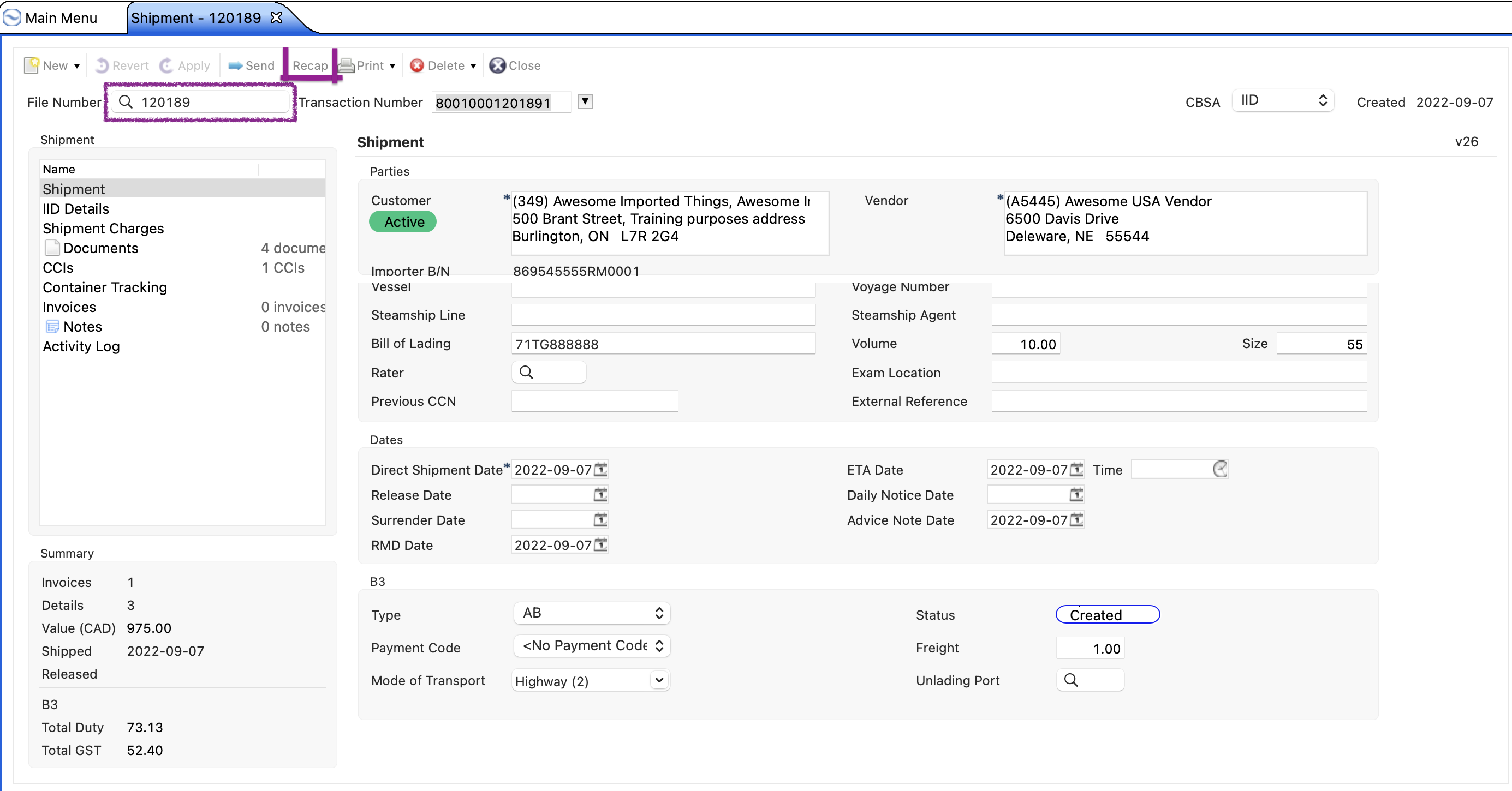
Another way to recap or/and print B3- Besides the Recap option, there is a Print option as well. It will also Recap the B3 and further can be used to Print.
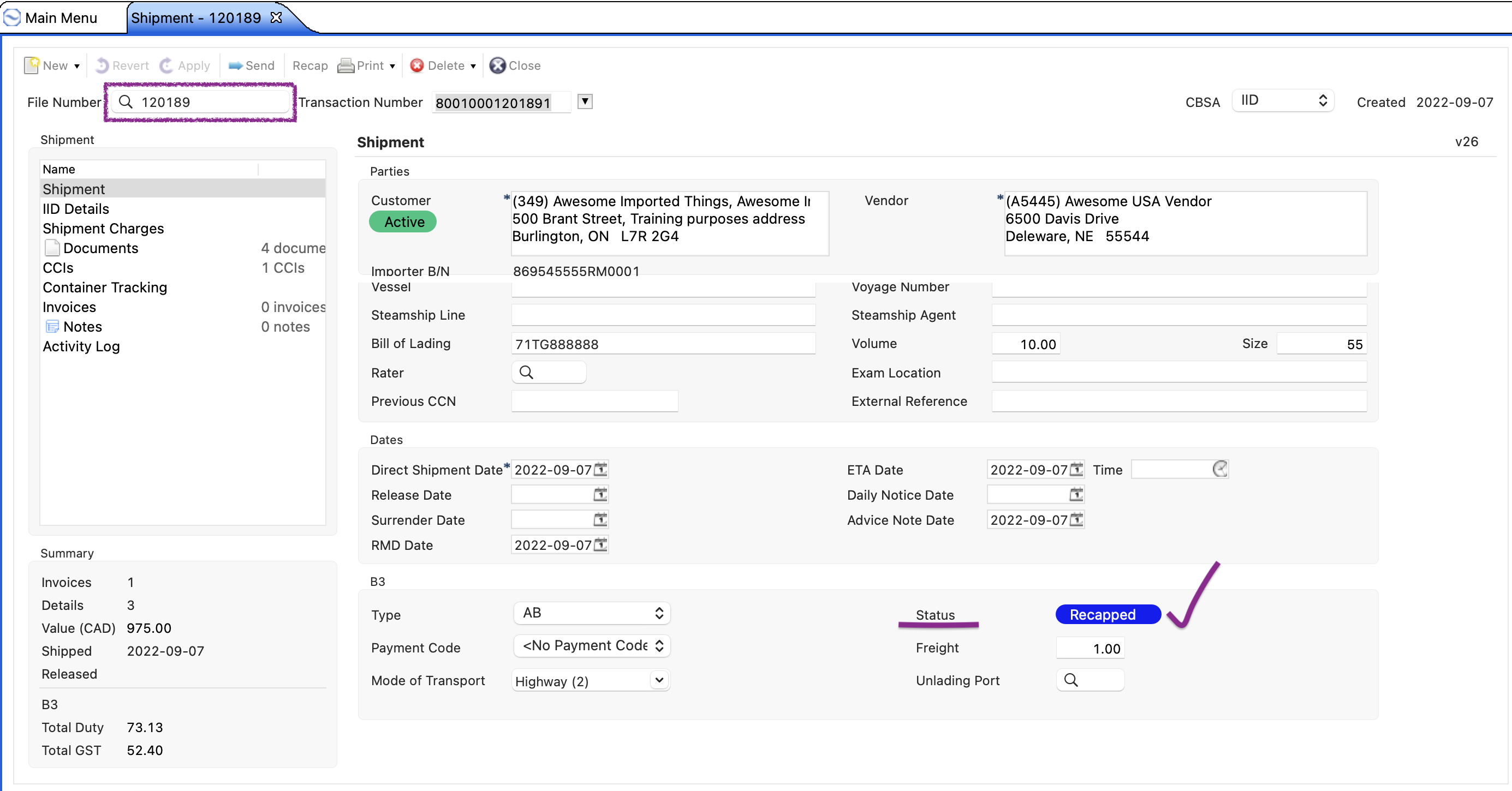
4. To confirm, we can see the Status on B3 as Recapped(highlighted in Blue).
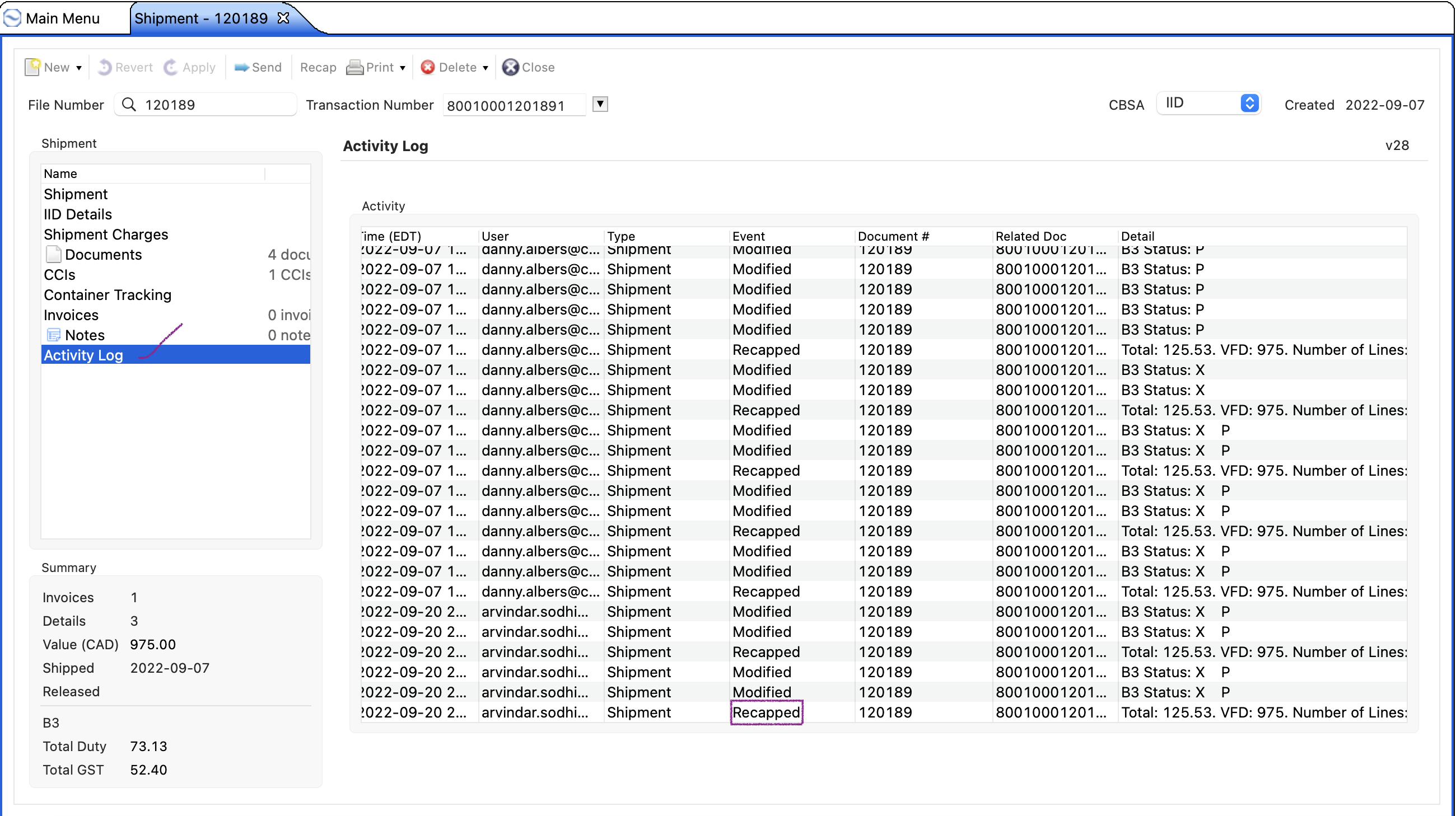
Another way- We can have a look in Activity Log that will also show the status as Recapped.
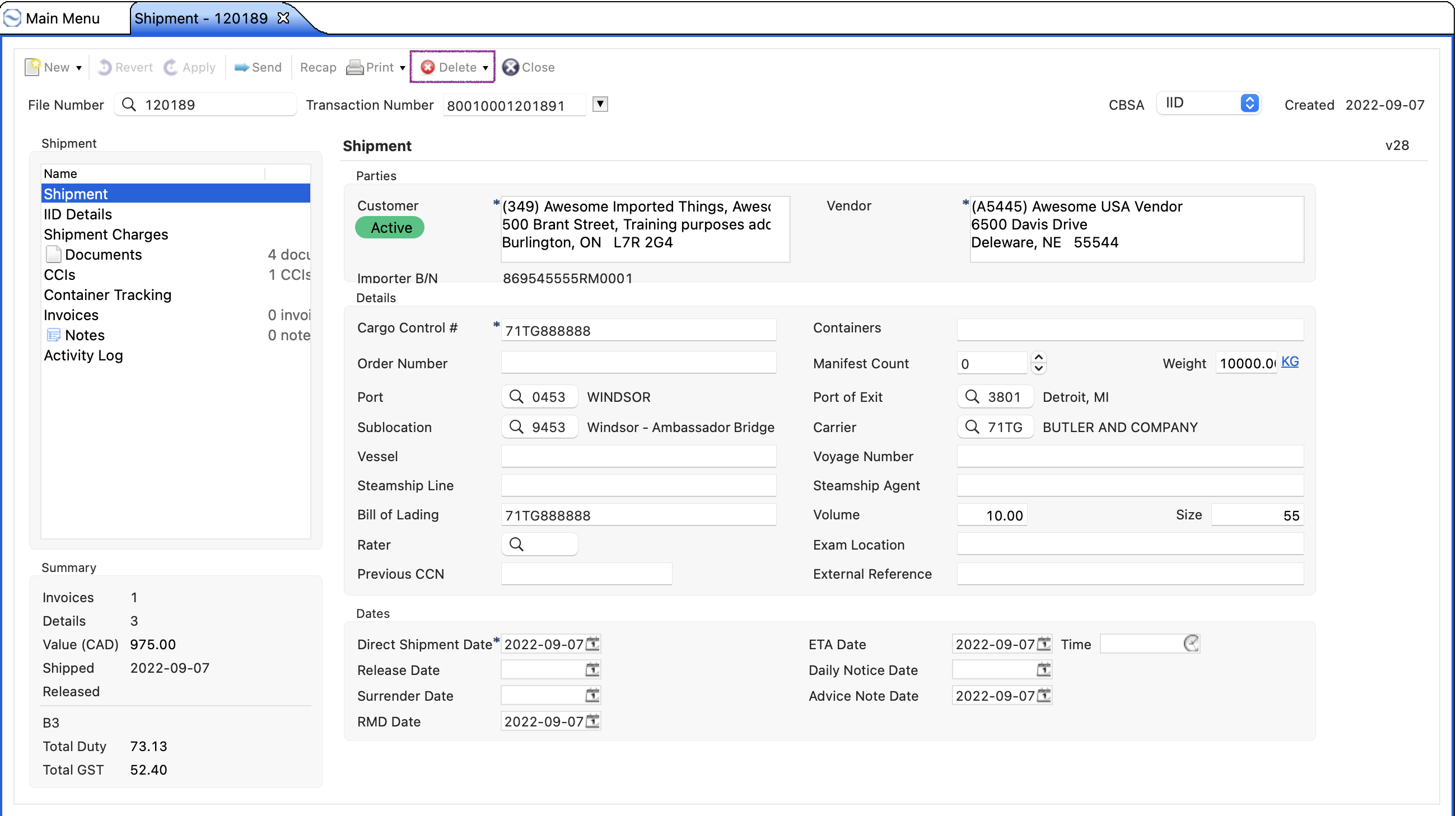
If the B3 was created in error for a shipment that does not require a B3, you could delete the B3 by-
For the new Shipment GUI screen- Follow the steps given below-
1. Go to the top Menu option as Beta>>Shipment create(GUI) (Same as shown above for Recapping the B3)
2. It will open the new shipment screen, enter the File number and search it with the magnifying glass. (Same as shown above for Recapping the B3)
3. Once the file is loaded, just above the Transaction Number, there is an option as Delete. Click on Delete to Delete the B3.
Comments
0 comments
Article is closed for comments.