How to Move Off-Screen Window Back To Screen in Windows 10

Problem:
I can't see the full part of a window that has placed itself partially off-screen.
How do I get it back ON screen to work in that window?
Solution:
Here is how to resolve this issue.
Another good example of the situation is a multi-display PC. If you are working on a laptop with an external display connected, you could easily forget a window on the external display and then disconnect it. Although usually the window should move to your primary display, sometimes it remains off screen. Here is how to return it home.
To move an off-Screen window back to the Screen in Windows 10, do the following:
- Press and hold the Shift key and right-click the app's taskbar icon.
- Select Move in the context menu.
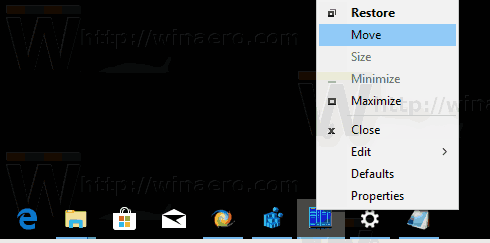
3. Use the left, right, up and down arrow keys on the keyboard to move your window. When you have moved the window to the desired position, press Enter.
Comments
0 comments
Please sign in to leave a comment.