Invoicing

1.) How to create an Invoice?
Main Menu: 2 - 1 - 1 (Create Invoice) or alternatively from the Top Menu: Invoicing - Create/Edit
2.) How to modify an Invoice?
Main Menu: 2 - 1 - 2 (Modify Invoice) or alternatively from the Top Menu: Invoicing - Create/Edit
3.) How to delete an Invoice?
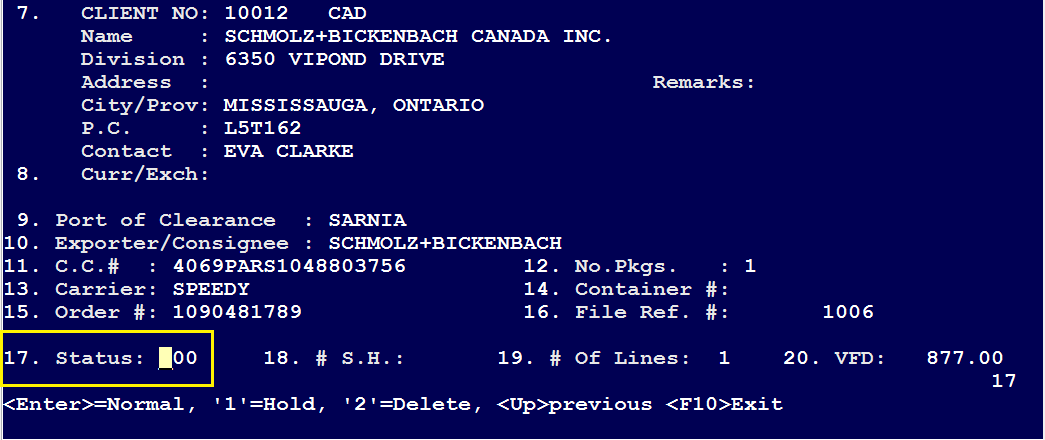
a) Load the Invoice , b) Select Field '17' and choose the appropriate status from the key at bottom of the screen
4.) How to create an Invoice without a B3 ?
Main Menu: 2 - 1 - 1(Create invoice), then select 'Source' as OTHER
5.) How to post/confirm an Invoice?
Main Menu: 2 - 3 (Daily/Monthly Sales Journal). Run the Sales Journal to confirm/post the Invoices
6.) How to know if an Invoice is confirmed by Field #17 - “Status” ?
As per Field # 17 - Status :
The first digit (hundred) reports
0 - Normal
1 - Hold
2 - Deleted
The second digit (ten) reports
0 - Not printed
1 - Printed
The final digit (one) reports
0 - Not confirmed
1 - Confirmed
Numbers not listed above don't exist (there is no status 300 for example)
7.) HST Tax Calculation on Invoices:
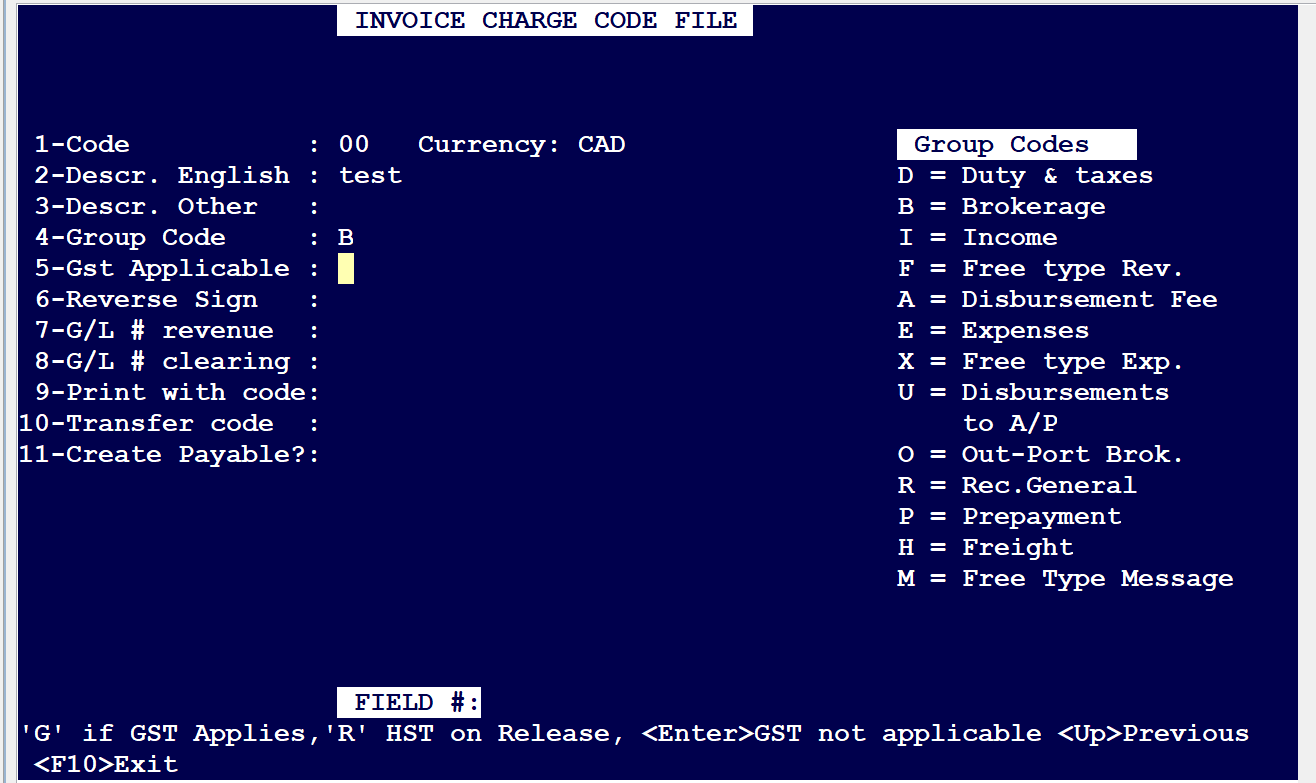
HST/GST are based on the Port of Release
If you are not billing a B3 or Shipment – Type 'Other', that wasn't billing a shipment/B3, it would calculate based on the GST Property of “ON” [Client Information Screen – Field 32]
Charge Codes can be customized to affect HST/GST calculations. See screenshot below:
8) How to send/Email invoices to Clients:
Main Menu: Invoicing (2) - Invoice Printing (2) or from the Top menu: Invoicing - Print

Referring to the snapshot above:
Under Print
- Either you can email a single invoice, or invoices not previously printed or multiple invoices (a range)
Under Email Configuration
- Ensure that you check off Email Customers and if there any associated documents that needs to be emailed, then check off Email Associated Documents
- For the above to work, customers need to have email contacts added to their individual accounts and services configured properly
- Main Menu: Master File Maintenance(1) - Client Files (3) - Client Information(1), Load customer and then press on <F7> Contacts


Under Output Selection
- Ensure that Print option is selected and then click on OK on bottom right to email out the invoices.
Comments
0 comments
Article is closed for comments.