LVSC Low Value Shipment Entries Processing

Main Menu: 8 (B3 Entries) - 13 (B3 Entry Posting) - 2 (Courier LVS)
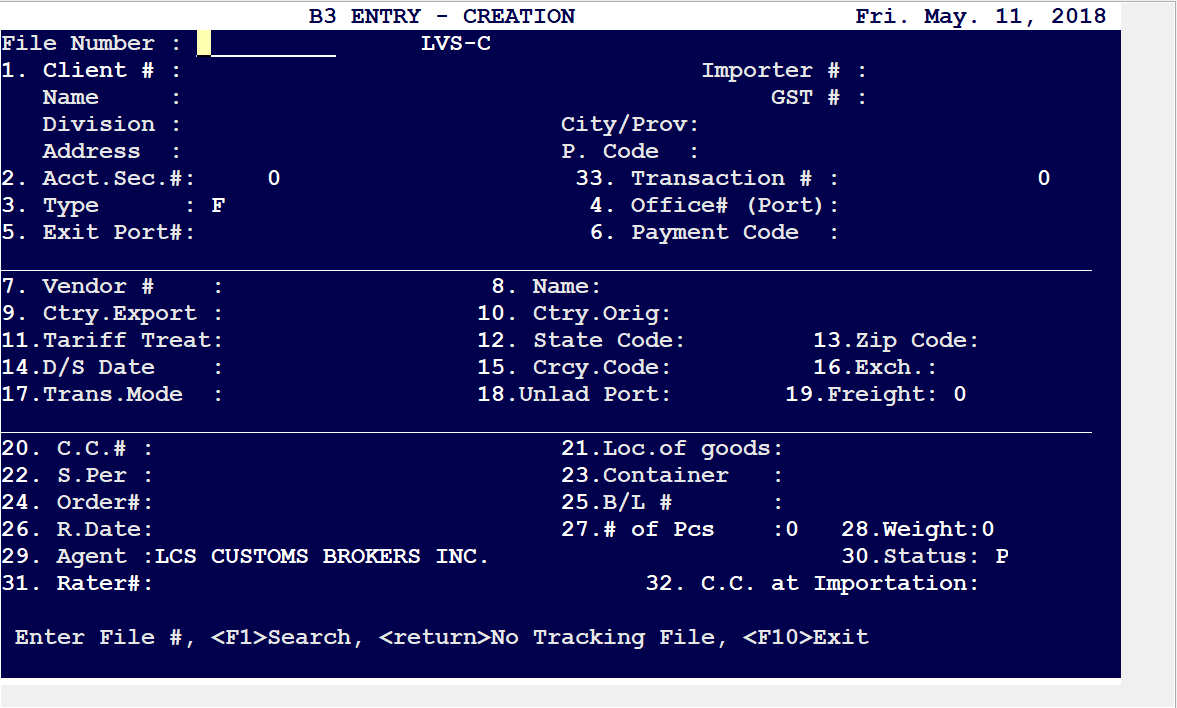
On this first screen enter the shipment information from the courier website; manifest details;
Overview – Required Data Fields
Each courier website/manifest detail will have a different layout. All entry information for this lead screen is on the courier website/manifest and is verified for compliance via the client shipping documents (Commercial Invoices/Canada Customs Invoices). FEDEX, UPS AND DHL
FIELD BREAK DOWN:
Field 1: Client #
Select F1 to Search client records. Select the CAD account as provided on the courier manifest. Note: Reconfirm the precise matching address and company name prior to selecting. Check importing documents if need be, clarify with your Supervisor or contact the client if authorized by your Supervisor prior. If the shipment is not a Triumph client or does not qualify for LVSC transmission (OGD, value over $2,500.00 CAD, etc) advise your Supervisor and they will complete the Broker Change Notification (BCN) to the carrier (unless authorized). ADD Client notes. ADD Vendor Notes (CVT)
Field 4: (Office # Port) from the courier manifest
Field 7: F1 search to select; add if new vendor
Field 9: Country of Export. Clarify default COE is correct
Field 10: Country of Origin
Field 11: Tariff Treatment. Default is TT2 which can remain as such until confirmation of any applicable Preferential Tariff treatments (NAFTA TT10, Mexico TT11, etc).
Field 12: State code [Confirm this from the courier manifest and reconfirmed from importation documents]
Field 13: Zip code [Confirm this from the courier manifest and reconfirmed from importation documents]
Field 14: Direct Shipment Date – D/S Date [From courier manifest]
Field 15: Currency Code [Confirm this from the courier manifest and reconfirmed from importation documents]
Field 20: C.C # or Cargo Control Number [Confirm this from the courier manifest]
Field 24: Order # [From the courier manifest or importation documents]
Field 26: R.Date / Release Date. If not provided on the courier website Enter current date.
Field 27: # of Pieces [From the courier manifest]
Field 28: Weight [From the courier manifest]
Select Enter twice to finish the data entry. Select F2 to attach the importation documents to the file. (As saved from the courier website)
Select Enter to continue with product addition and compliance details from the importation documents.
Enter the client Invoice Number (if provided) or select Enter to add the shipment Amt (Total Shipment Value).
Select F1 to search products for addition. Verify all compliance requirements such as VFD Code, Valuation, Country of Origin and GST application (F5) if required prior to completing the file.
ADD – Shipment notes for additions
Select F1 to invoice client. ADD – LVS Hold functionality to not send to CADEX or invoice
Verify the duties, taxes, brokerage rate and all charges are correct prior to emailing the client.
Print a copy of the B3 and invoice; maintain paper copies in a file folder for review of your Supervisor.
Supervisor Monthly Consolidation
Main Menu: 8 (B3 Entries) - 24 (Courier LVS) - 3 (LVS Consolidation)
1) Enter Client Number: Select Enter/Return to choose all clients
2) Port of Release: Select Enter/Return to choose all ports
3) Ending Release Date: Enter the date
4) Are Previous Entries Correct?: Select Yes (Multiples due to Direct Bond clients)
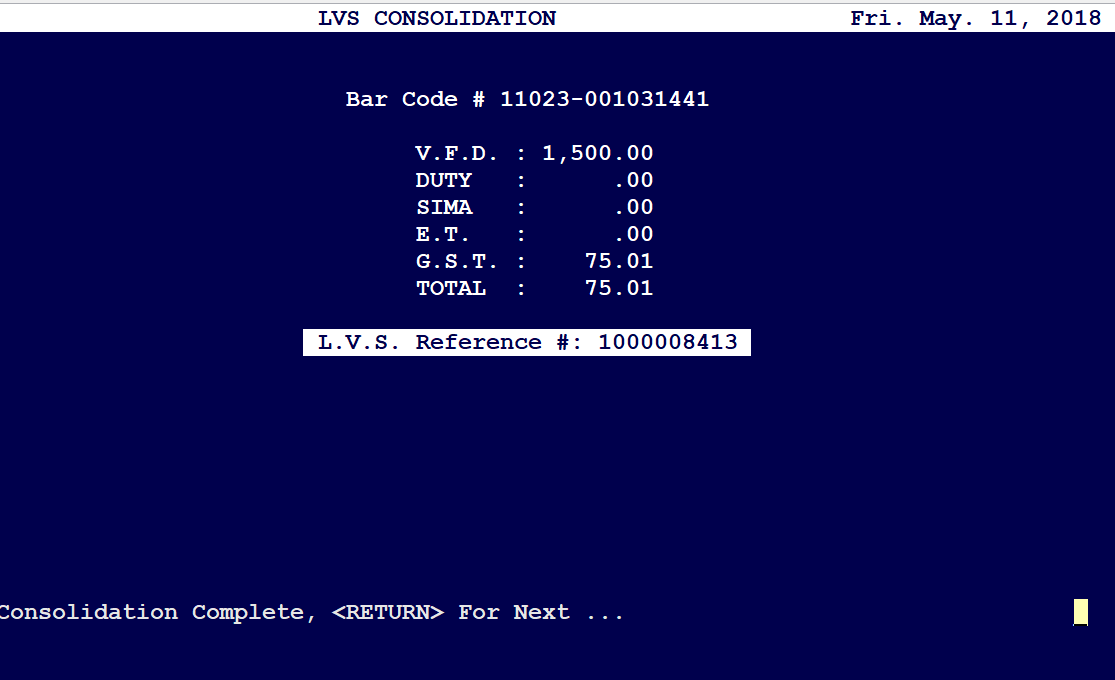
The system will detect all LVS entries within the system up until that Ending Release Date above.
Select Return to continue with the Consolidation. Then Return again, where the system will show you the entries that will be consolidated. See screenshot below:
To Transmit Consolidated LVS to Cadex
Main Menu: Cadex (19) - Transmit Entries to Cadex (2) - Transmit Consolidated LVSs to Cadex (2)
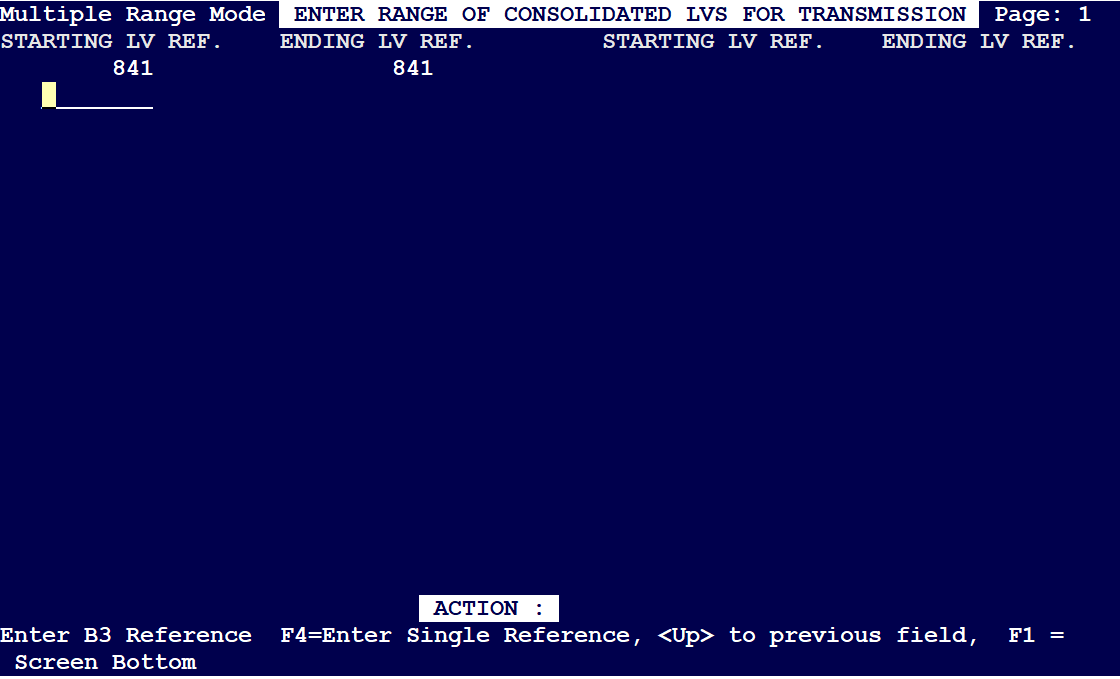
Press on F1 to select Screen Bottom and completion of entering Batched LVS Reference Numbers.
Press on Enter to continue.
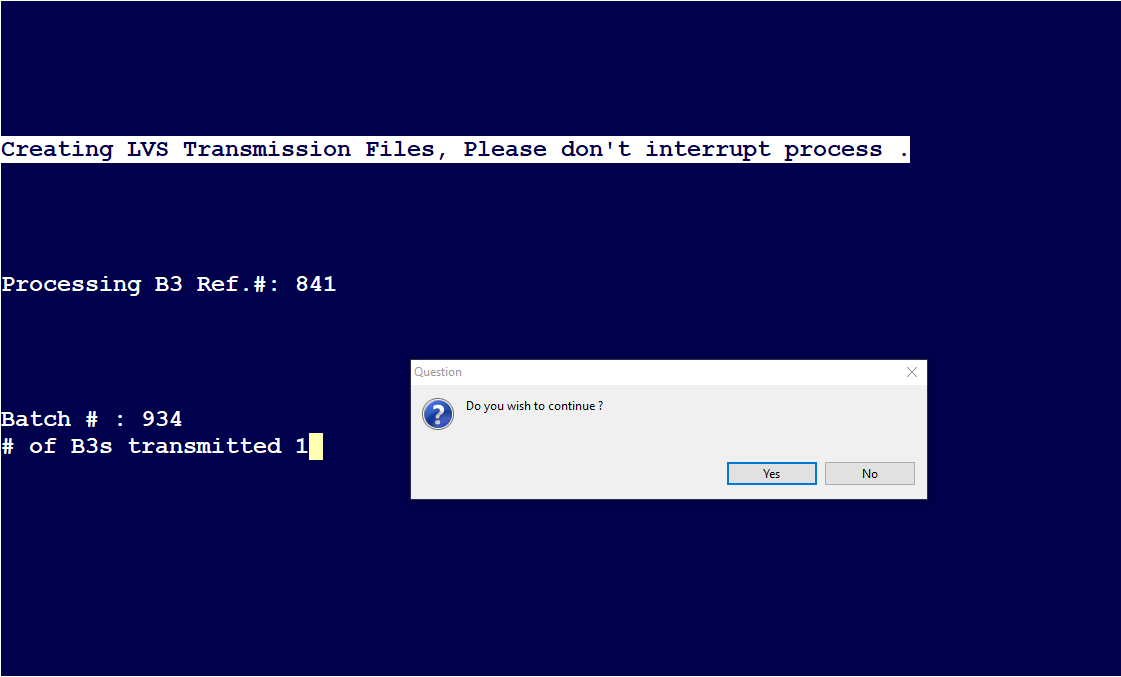
Total of all files transmitted will appear. If correct select 'Yes' for the window “Do you wish to continue”
Comments
0 comments
Article is closed for comments.