Fisheries & Ocean

Step 1:
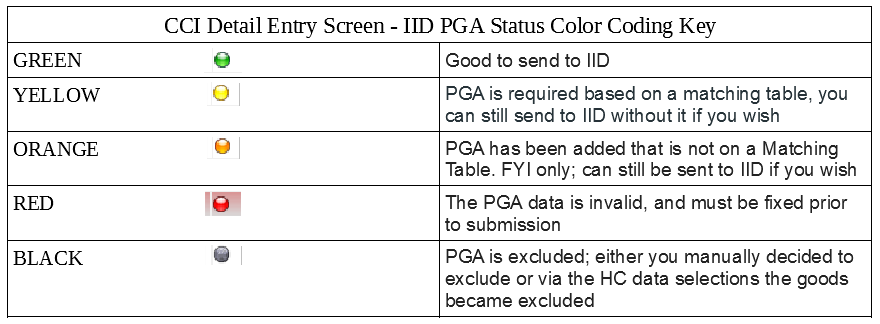
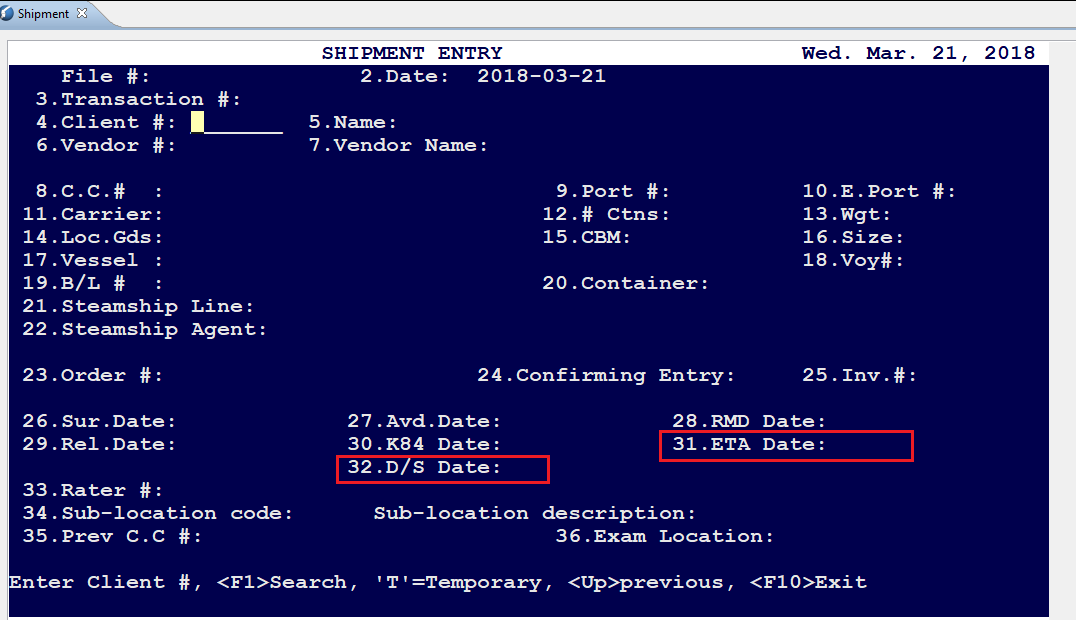
Go into the Shipment Entry screen (13-1) and start keying in your shipment data as usual. Ensure that the ETA Date/Field # 31 is completed as now mandatory.
Step 2:
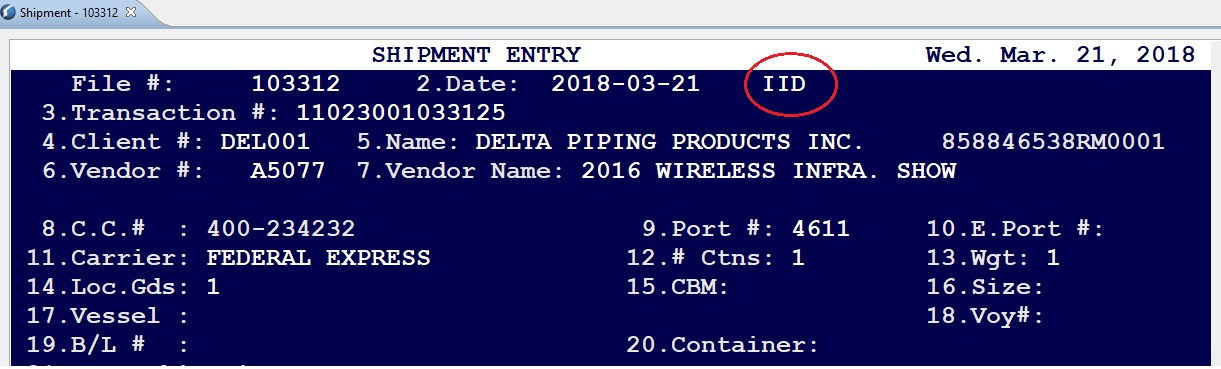
After the transaction # is generated with the File #; “File Number XXXX has been created, with the Transaction Number XXXXXXXXXX”, Press the “F9” key to ENABLE IID and you should see “IID” on the top of the Shipment entry screen. See screenshot below:
Step 3:
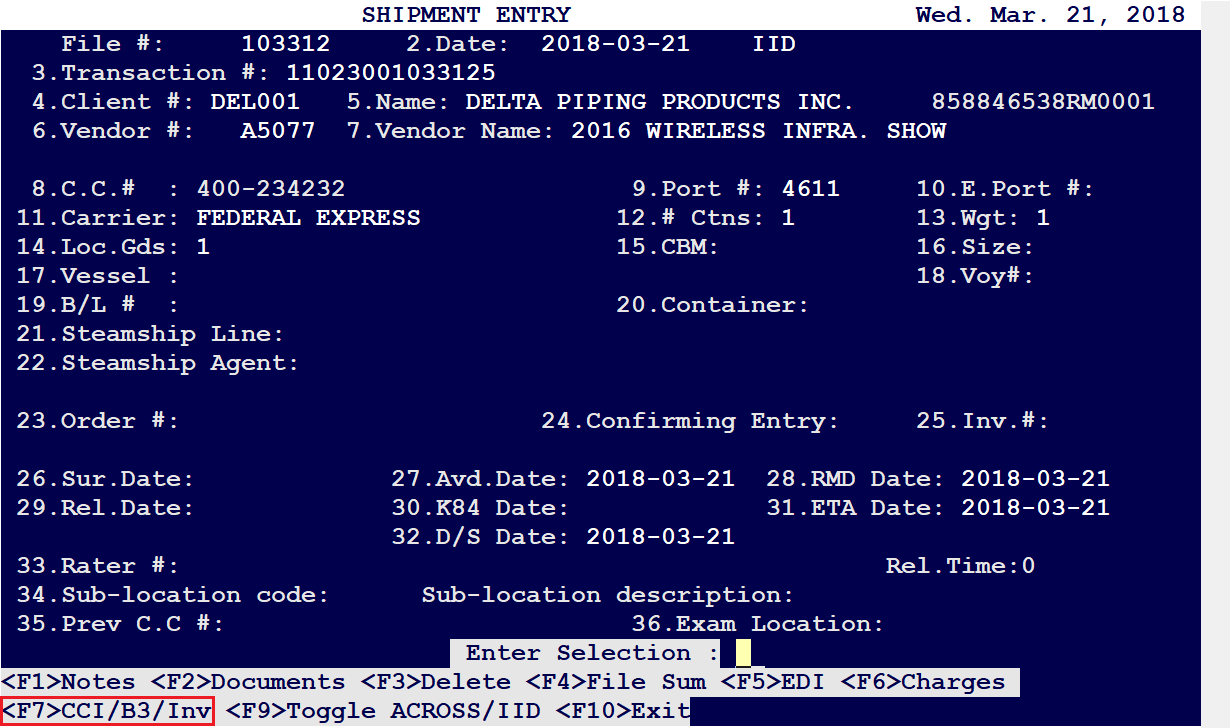
Once “IID” appears on the top, press on “F7” to select CCI and then ENTER as usual.
Step 4:
Field # 8, Press on <F5> to edit the client. Ensure the correct City, Province, Country and “Contact” with Email Address” are entered properly.
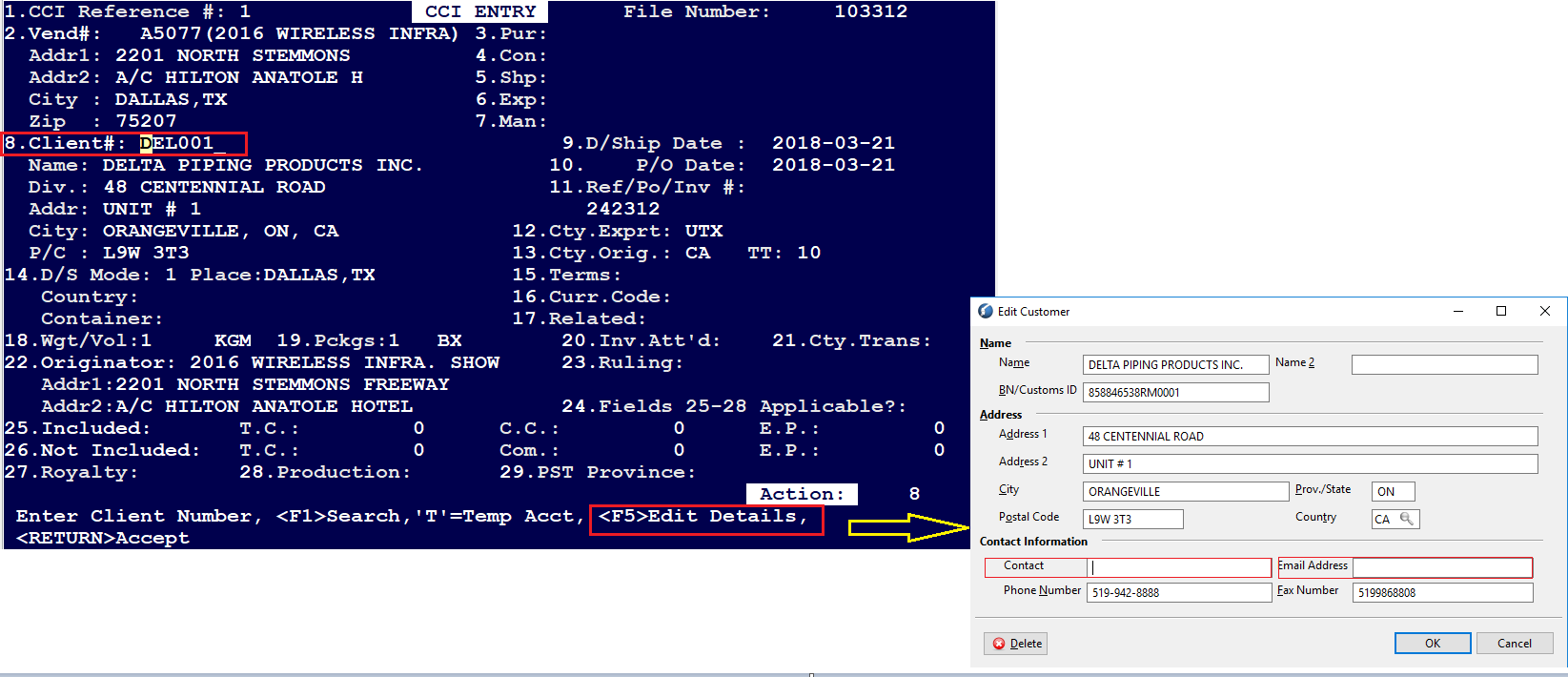
Step 5:
Continue to key in the CCI Details, and ensure that the UOM is selected for Field # 18 and Field # 19 (Field 19 is currently BX Boxes)
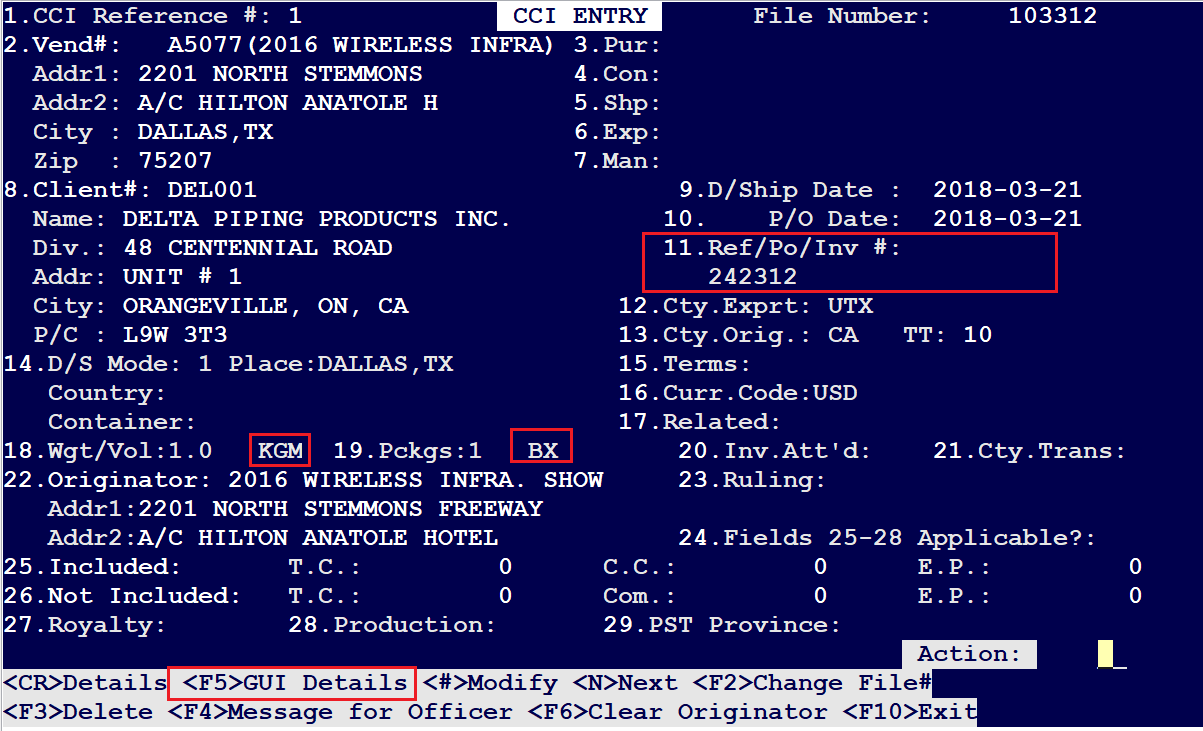
Step 6:
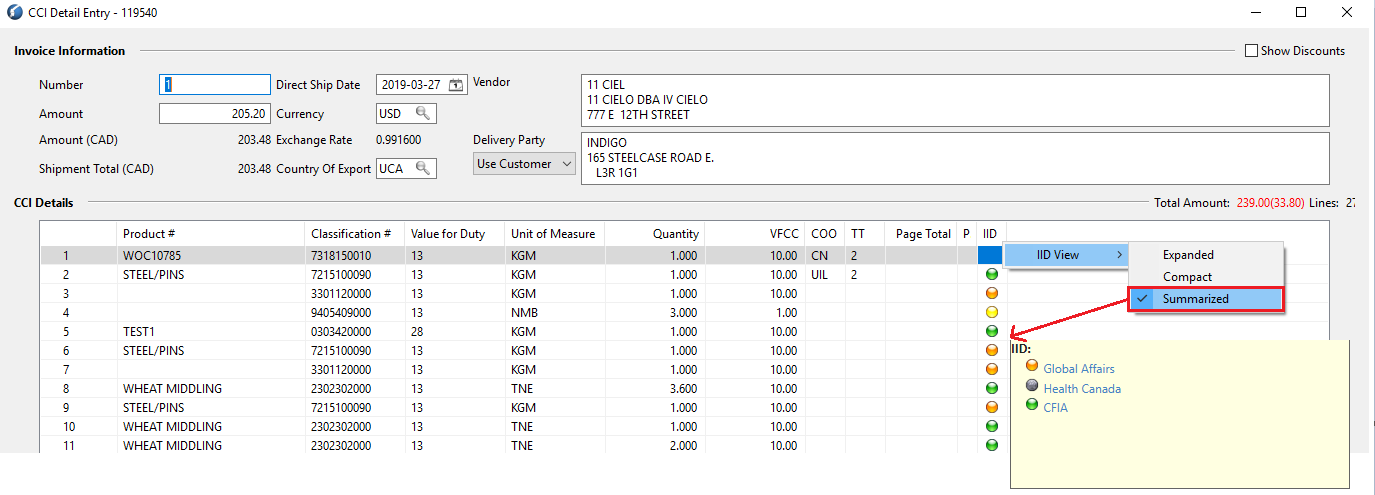
<F5> GUI Details to enter Invoice data. Key in your products, CCI detail lines as usual. Also please refer to the IID PGA Viewing Modes and Status below:
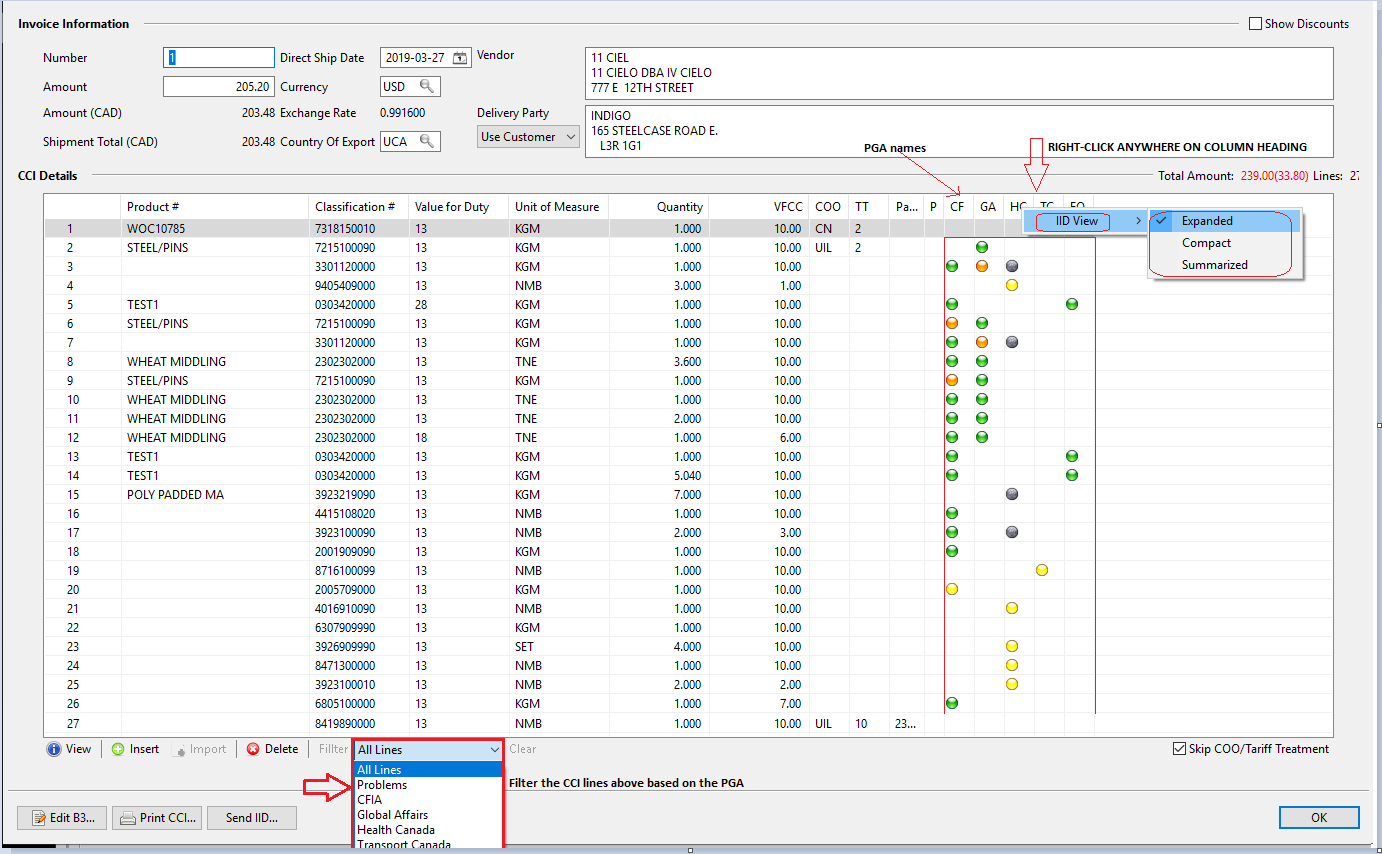
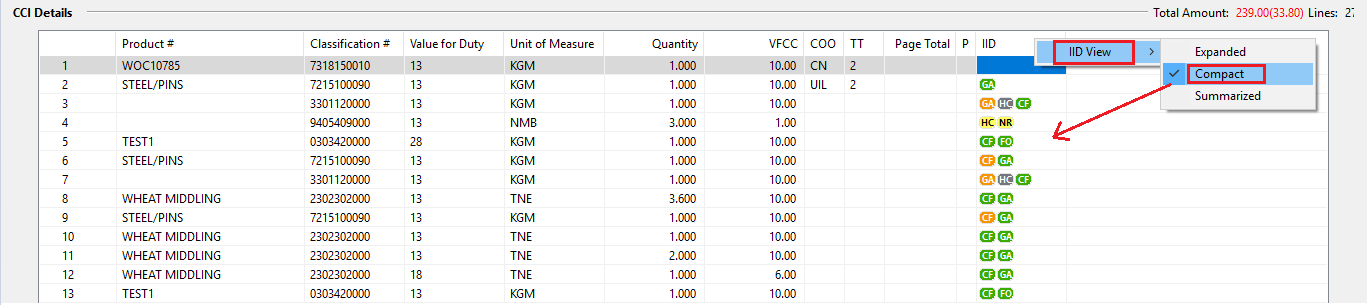
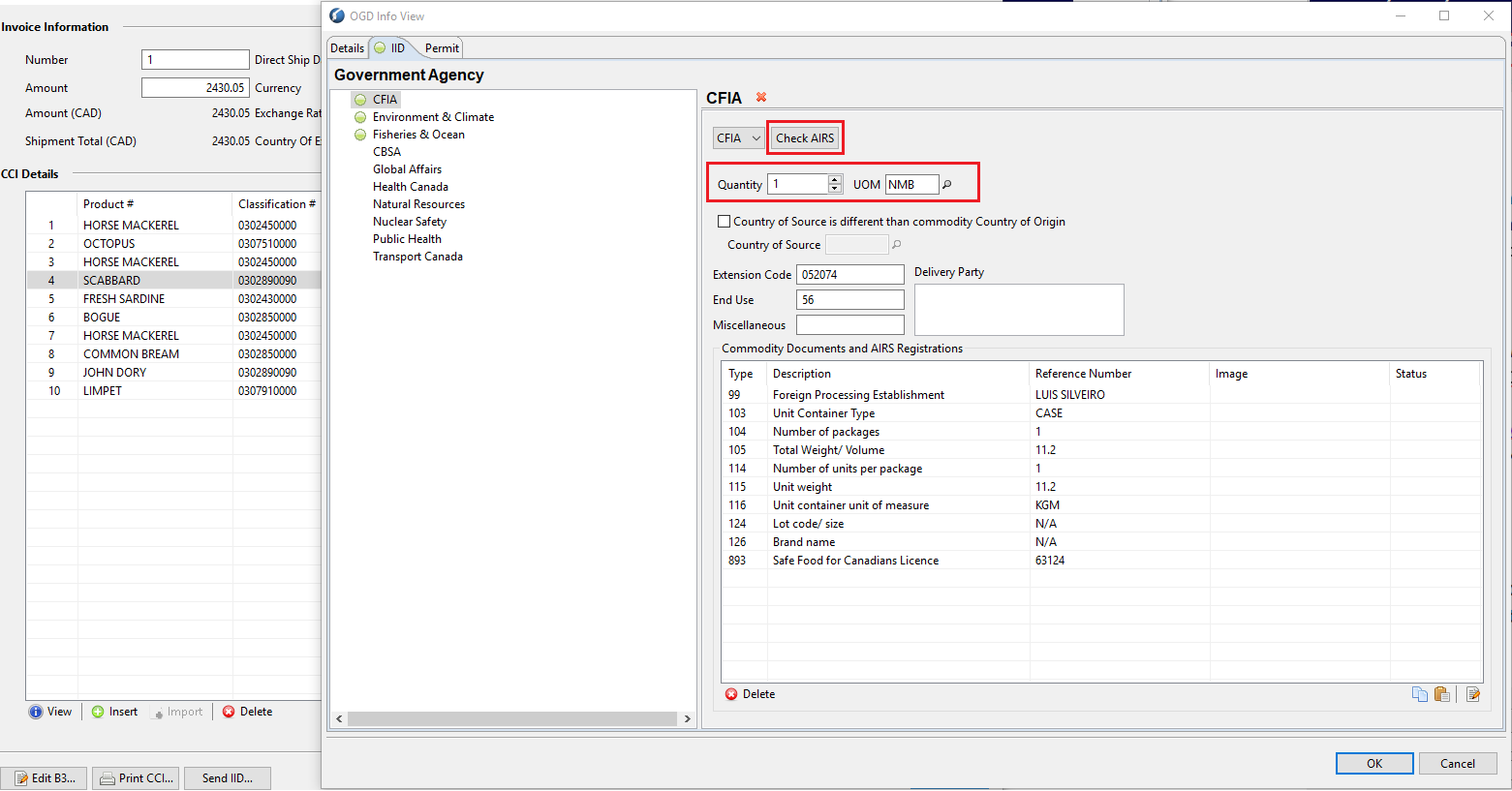
As per this Fisheries shipment, fill out the CFIA PGA details:
Environment and Climate PGA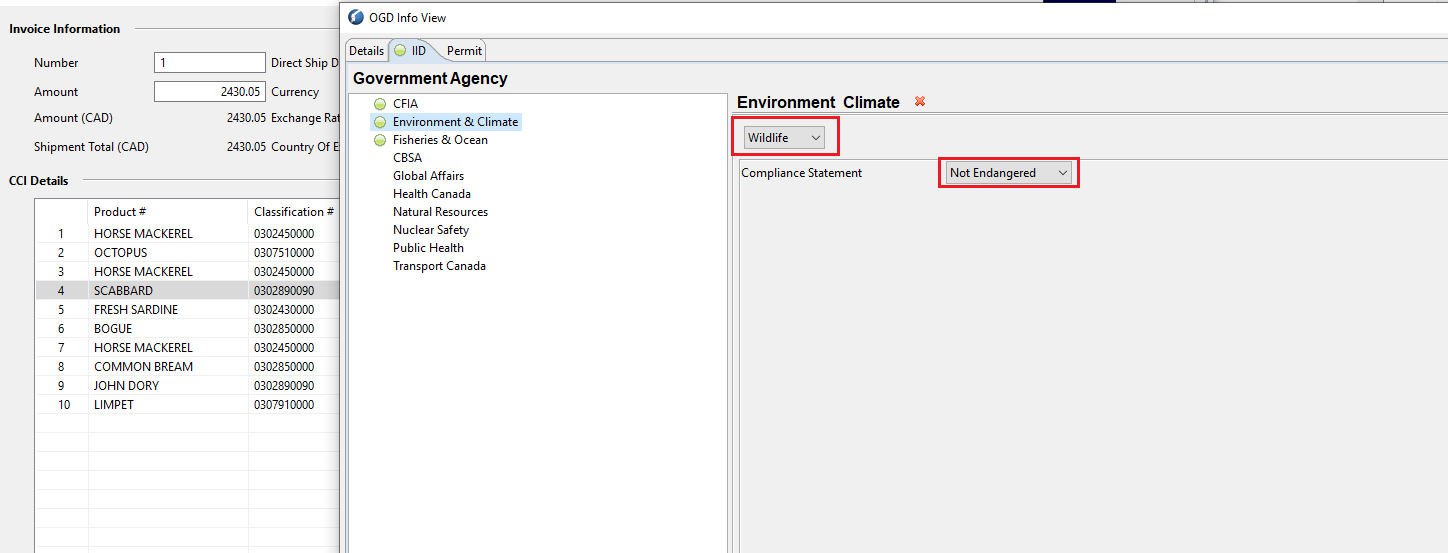
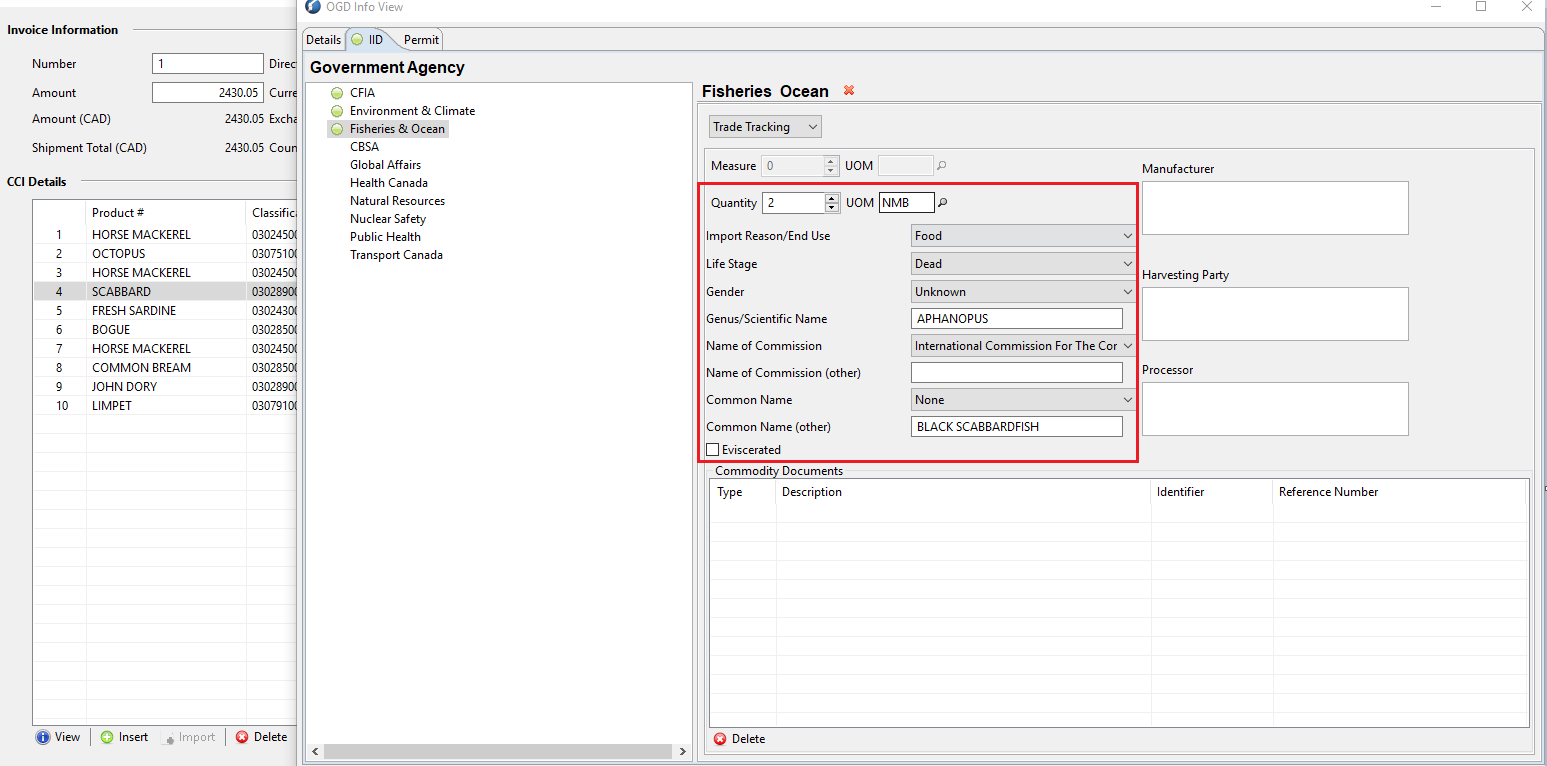
Fisheries & Ocean PGA
- Please note you can also use the "Import" option in the above window to import CCIs from a spreadsheet, instead of a manual line by line entry. How to use the 'Import' option - the guide is over here: Import CCI option
- Also the "Unit of Measure" value above can be changed as required
Step 7:
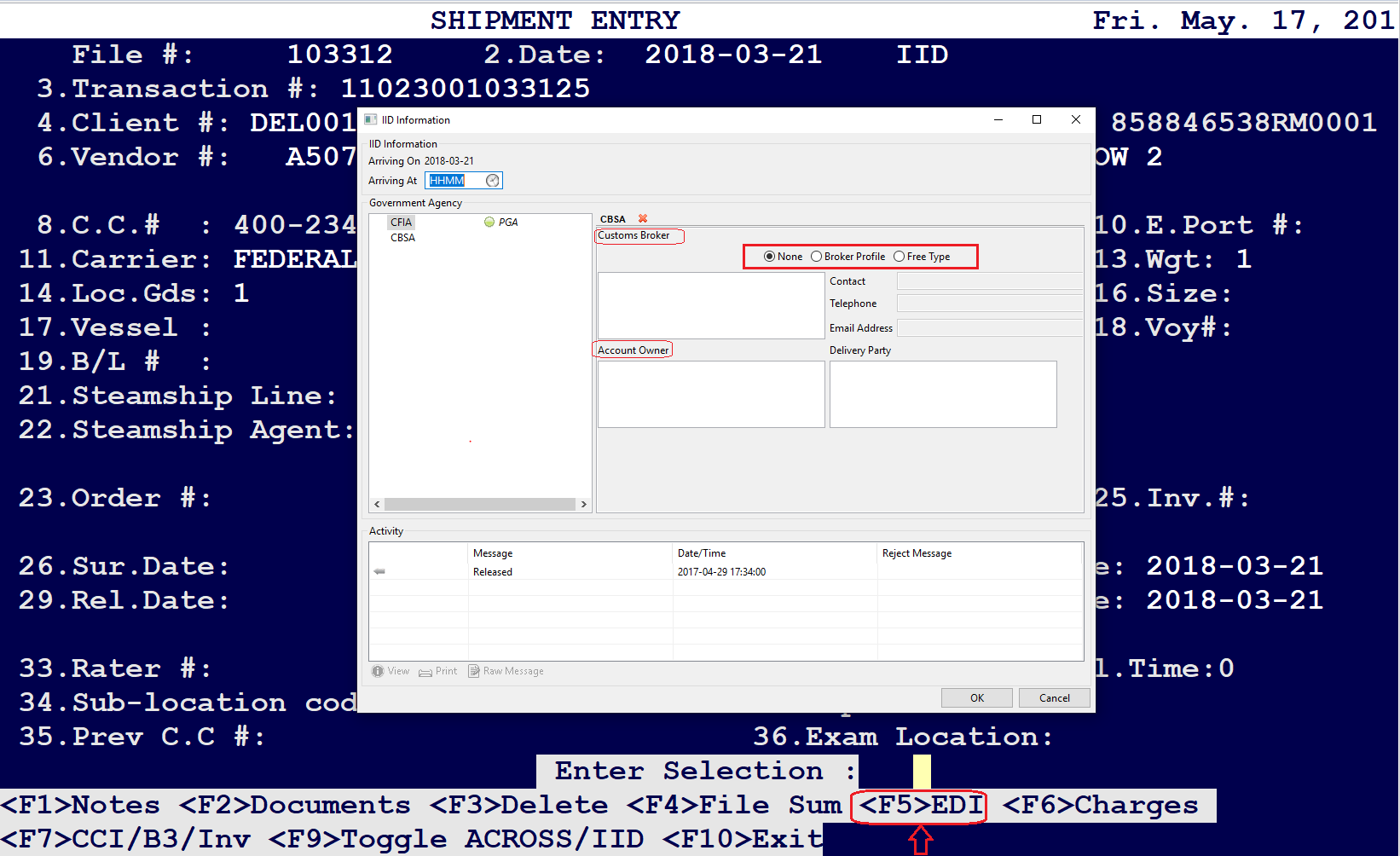
On some shipments, CBSA requires the Customs Broker and Account Owner information to be provided by the Broker. It can be accessed by pressing on F5 on the Shipment Entry screen. See below.
Step 8:
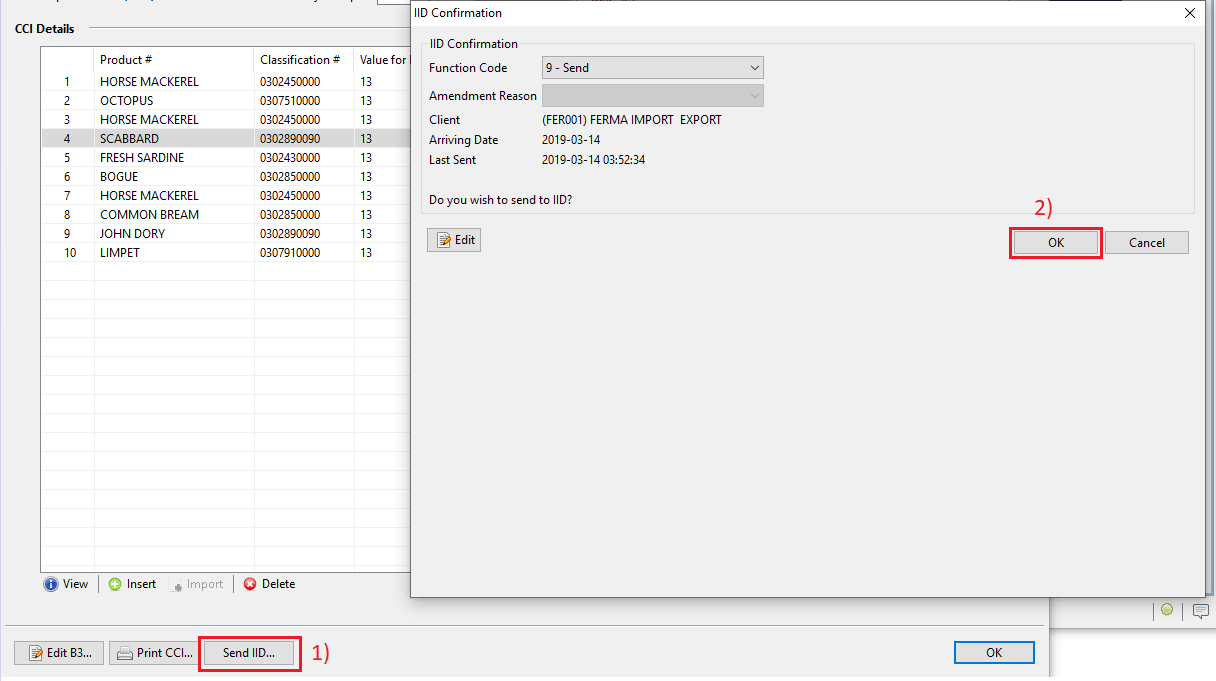
Once all the CCI lines with their respective PGAs are filled out, on the CCI Detail Entry screen, click on 'Send IID' to send the shipment file to Customs.
Comments
0 comments
Article is closed for comments.