Apple can’t check app for malicious software Or Unable to setup launcher in MacBook.

Problem:
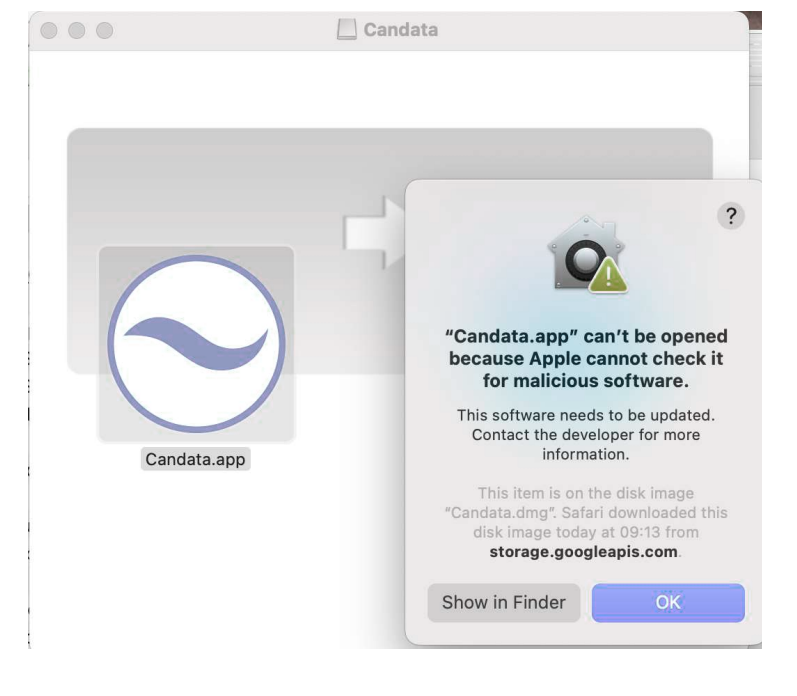
Sometimes after downloading the new launcher, when you try to install it, you get the warning as shown below in the screenshot:
Solution:
You can use either Method 1 OR Method 2 from the below methods.
Method 1:
Apple can’t check app for malicious software
Using an app that can’t be checked for malicious software might harm your Mac or compromise your privacy. If you’re certain that the app you want to use is from a trustworthy source, you can override your Mac security settings to open it. CANDATA's MAC software is from a trustworthy source.
-
In the Finder
 on your Mac, locate the app you want to open.
Don’t use Launchpad to locate the app.
-
Control-click the app icon, then choose Open from the shortcut menu.
-
Click Open.
The app is saved as an exception to your security settings, and you can open it at any time by double-clicking it, just as you do with any registered app.
Note: You can also grant an exception for a blocked app by clicking the Open Anyway button in the General pane of Security & Privacy preferences. This button is available for about an hour after you try to open the app.
To change these preferences on your Mac, choose Apple menu  > System Preferences, click Security & Privacy
  , then click General.
Source:
https://support.apple.com/en-ca/guide/mac-help/mchleab3a043/mac
Method 2:
Error: Candata can’t be opened because Apple cannot check it for malicious software.
"Candata" can’t be opened because Apple cannot check it for malicious software
please try the following:
-
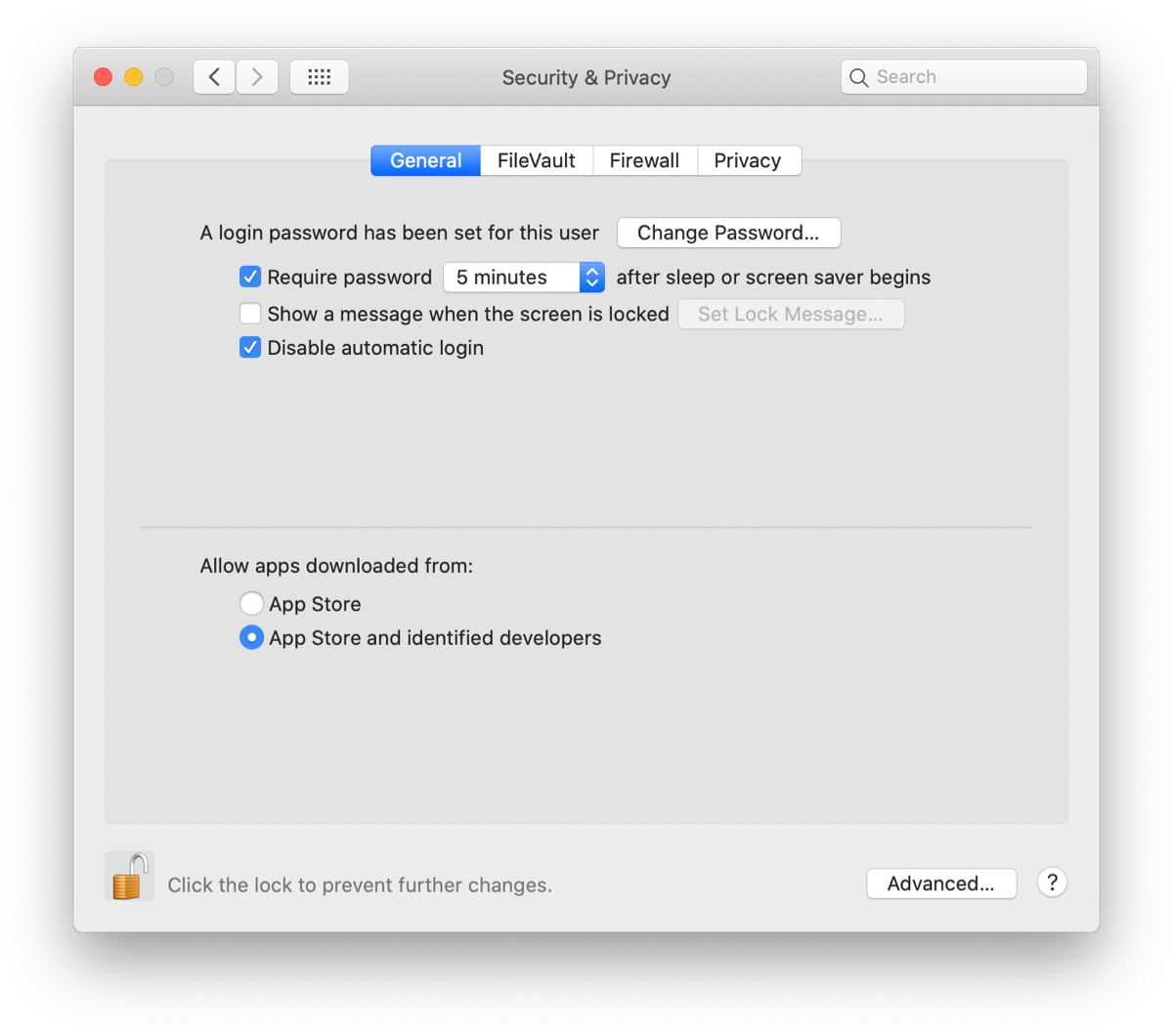
Go to macOS System Preferences > Security & Privacy > General and make sure that the option for "Allow apps downloaded from" is set to "App Store and identified developers."
Comments
0 comments
Please sign in to leave a comment.